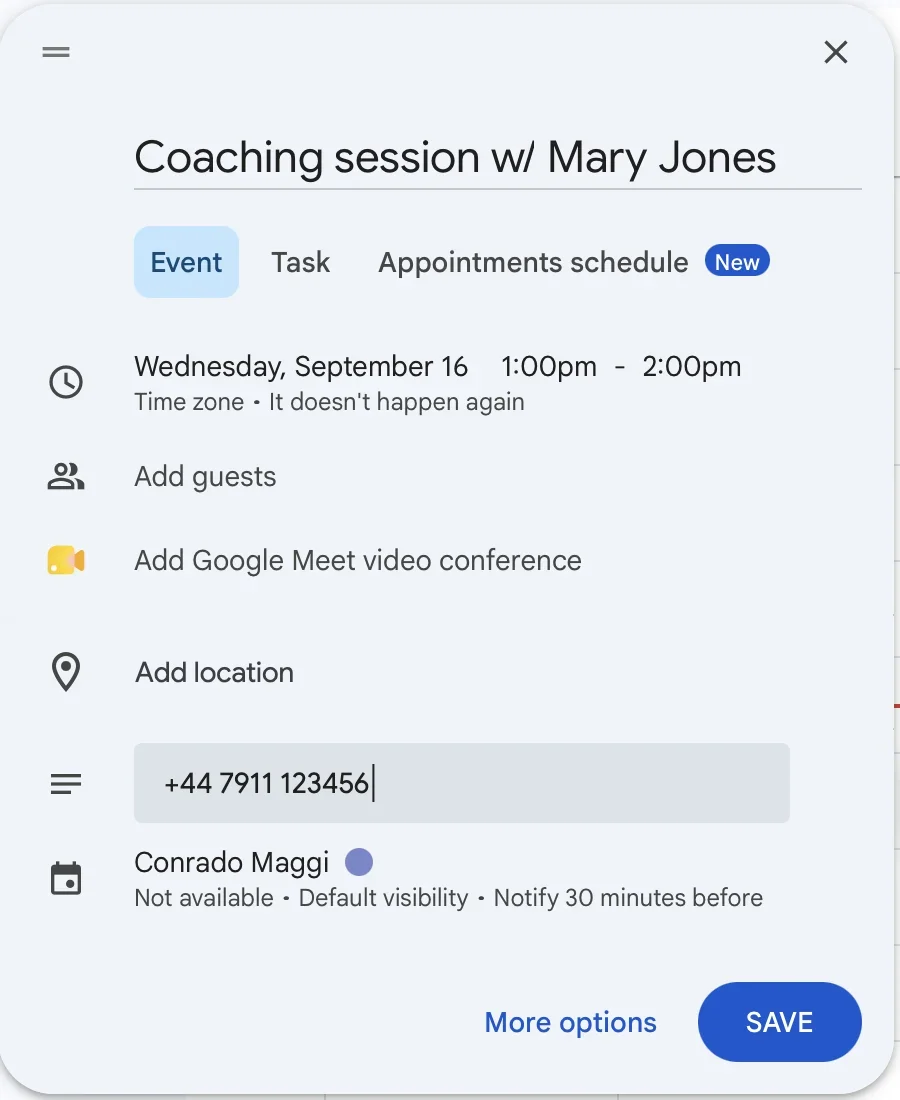
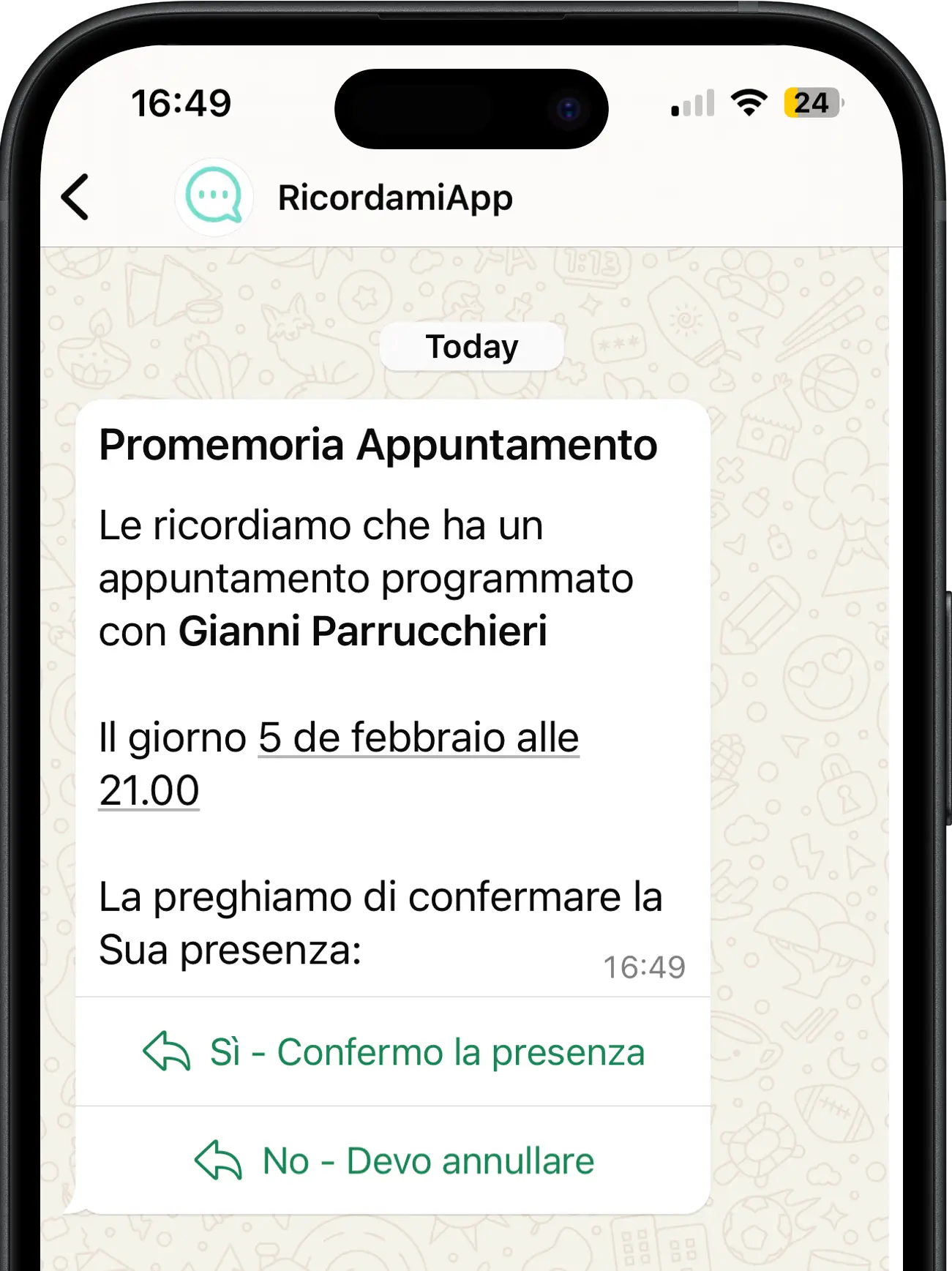
Your appointments are already in your calendar. RecordarApp reads them and sends each client a WhatsApp reminder before their visit, with your business name and the message you choose.
Keep scheduling in Google Calendar. Let RecordarApp take care of reminding your clients.
Start free trial14 days · No credit card required
Connect your Google Calendar
No extra app for clients
Client replies reach you
Your appointment is in the calendar, and the notification appears on your phone. Adding a client's name and number to an event does not send them a WhatsApp reminder.
You still have to go through tomorrow's appointments and message each client yourself. On a busy evening, it is easy to miss one.
Connect your calendar once. Every event with a client's phone number gets a WhatsApp reminder at the time you set.
Choose when each reminder goes out, such as the day before or a few hours ahead
SMS fallback can deliver reminders when WhatsApp cannot
See confirmations and receive your clients' replies
How it works
Connect your calendar, choose a reminder, and track the replies.
Connect your calendar
Authorise your Google account and select the calendar that holds your client appointments. You can keep adding appointments in the same place.
Add the client's phone number, including the country code, to the event title or description. For example: Haircut - Alex Morgan +44 7700 900123
Send the reminder
Choose how far ahead to send the reminder. You can set more than one alert for an appointment, such as a week before and the day before. Each sent message counts towards your allowance.
Write your message once, with your business name. RecordarApp fills in the date and time for each appointment and sends it to the client's WhatsApp. Send the first one to your own phone to see exactly what clients get.
Track client responses
When you request confirmation, RecordarApp updates the appointment status based on the client's response.
Reminder sent
The reminder has been sent and you are waiting for the client's reply.
Appointment confirmed
Your client has confirmed the appointment.
Appointment cancelled
Your client has cancelled the appointment.
Keep your existing workflow
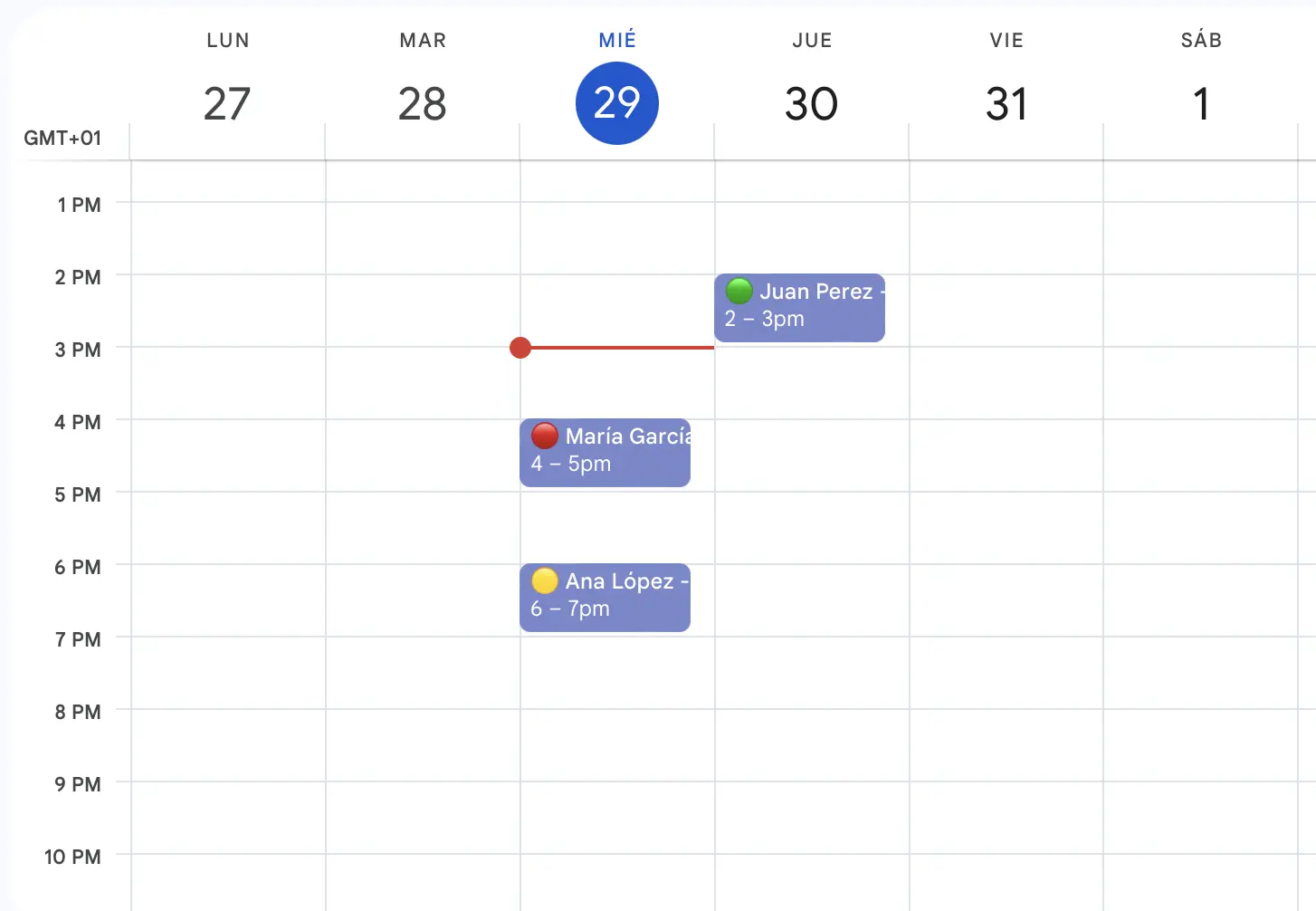
RecordarApp adds WhatsApp reminders to the schedule you already use. Keep creating and managing appointments in Google Calendar.
Book appointments as usual
Whether a booking comes by phone, WhatsApp or in person, add it to Google Calendar with the client's number. RecordarApp handles the reminder.
Reschedule an event and the reminder follows
When an event's date or time changes, RecordarApp updates the scheduled reminder after syncing. Deleting the event stops reminders that have not already been sent.
Choose which events send reminders
Only events with a phone number get a reminder. Add include and exclude rules to keep personal events out of it.
Add appointments in the app too
For bookings you manage outside Google Calendar, create appointments directly in RecordarApp. Both sources can use automatic reminders.
No extra app for your clients
The reminder arrives in WhatsApp. Clients do not need a RecordarApp account or another app to receive it.
SMS fallback
When a WhatsApp reminder cannot be delivered, SMS fallback can send it as a text message. Contact us to check delivery availability in your country.
Connect it once and every client gets a WhatsApp reminder before they're due. Send the first one to your own phone to see it.
14 days · No credit card required
Google Calendar notifications do not send WhatsApp messages. RecordarApp connects the two: it reads an eligible event and sends a reminder to the client's phone number.
Create a RecordarApp account, connect your Google account and select a calendar. Add client phone numbers to events, then choose your reminder message, timing and sending rules.
Add the client's phone number to the event title or description. You can continue creating, rescheduling and deleting appointments in Google Calendar. RecordarApp syncs those changes for future reminders.
Choose the lead time in your reminder settings. You can use several reminders for one appointment, for example a week before and the day before. Each message uses one reminder from your allowance.
Confirmation and cancellation responses update the appointment status. Other replies, such as a question or rescheduling request, can be forwarded to your email so you can follow up.
SMS fallback can deliver a reminder when WhatsApp cannot. Check delivery availability in your country with our support team.
Set your message once and use the supported fields to insert appointment details automatically. Our appointment message templates include examples you can copy and adapt.
Start with a 14-day free trial, no credit card required. Connect your calendar and test the reminders before choosing a subscription. The pricing page lists each plan's reminder allowance and billing options.
Professional and higher plans support multiple calendars. The connected Google account needs access to any shared calendar you select. Each calendar has its own reminder settings.
Yes. In your booking settings, choose whether existing Google events block available slots and whether new bookings are written to Google Calendar. These are separate settings from reading events for reminders.
Set up your online booking page